Create 'After the jump' summaries
After the Jump is a feature which lets you create expandable post summaries in your blog posts, so longer posts appear as an intro with a link to Read More.
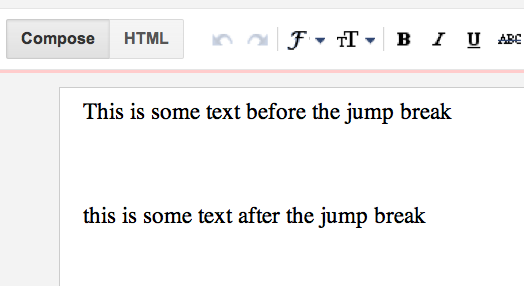
Creating jump breaks in your blog posts can be easily done right from the Post Editor, without the need for any HTML changes. First, decide where in the post you want to create the jump break, and place your cursor in that position:
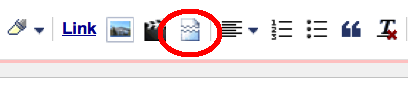
Once your mouse cursor is placed at the jump point, simply click the Insert Jump Breaktoolbar icon:
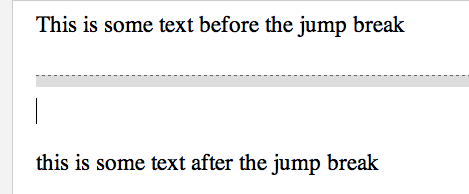
Clicking the icon will insert a grey bar at the cursor point, illustrating where in the post your break will appear. The bar can be dragged though, so you can always re-position it after insertion.
Once you decide on the jump break's location within the post, you're ready to publish your post. After publishing, you'll notice that the Read More link is placed where you set the jump break. Clicking on the Read More link will then display the full text of the post.
If you feel like changing the Read More text to your own custom phrase, you can easily do this from the Layout tab. Click Edit on the Blog Post widget, and then change the Post page link text to whatever you'd like.
The Jump Break feature doesn't change how your post appears in your feed. You can configure post feed options by going to Settings | Basic | Other, and editing Allow Blog Feed.

